Portal Training and Resources
Portal allows the general public and registered users to access court information online, including searching for court dates and records, and making payments for fines and fees.
Overview
- Portal FAQs
- How-To Videos Playlist (YouTube)
- Intro and Overview
- Elevated Access
- Smart Search
- Search Hearings
- Make Payments
- Judgment Search
- Transcript Search
- Search for Bond Forfeitures
- Validating a DOB without Elevated Access
- Search Hearings for LEO’s
- Register for Training Available for Attorneys and Judicial Partners
- New Portal Functionality: Calculated Interest in SmartSearch
Portal Options (learn more in the FAQs above)
- Smart Search: Provides users with a detailed Case Summary (also known as the Register of Actions). You can find a detailed listing of a court file’s timeline that would include the Case Summary, Case Information, Assignment Information, Party Information, Causes of Action (Civil, Family, Probate, and Mental Health cases), Case Events, Dispositions, Hearings, and Financial Information (when applicable). SMART SEARCH has Advanced Filtering Options (Civil Actions, Special Proceedings (nonconfidential), Estates, and Criminal Actions), in accordance with NCGS 7A-109(b)(1-4). SMART SEARCH houses crucial information and should be used in conjunction with NC JUDGMENT SEARCH to provide the most detailed listing of information. Select Advanced Filtering Options for options to filter your search by location (General Options), party name, DOB, etc. (Party Search Criteria), and/or case type, case status, case filing date range (Case Search Criteria).
- Search Hearings: You can search current court calendars for hearing locations and times. SEARCH HEARINGS allows users to search by case number, party name, business name, attorney name, attorney bar number, judicial officer, or courtroom.
- Make Payments: Criminal court fees and fines can be paid online without visiting the courthouse. The following payment types are accepted online: Cost and Fees, Restitution, Criminal Attorney Fees, Probation and Parole Fees.
- NC Judgment Search: Allows the public to search by a party’s name or case number for N.C. Judgment Indexes entered in the N.C. Judicial System’s database in accordance with NCGS 7A-109(b)(6). Results include judgments related to Civil, Family, Small Claims, Special Proceedings, Criminal, and Miscellaneous court items. The NC JUDGMENT SEARCH can be filtered to help users’ narrow results based on the case type, status, location, and date of the judgment. Results provided will feature case number, disposition status, index date and time, parties to the action, and judgment comments that are relevant to the disposition. However, to view the complete case summary, a searcher must navigate to the SMART SEARCH portlet.
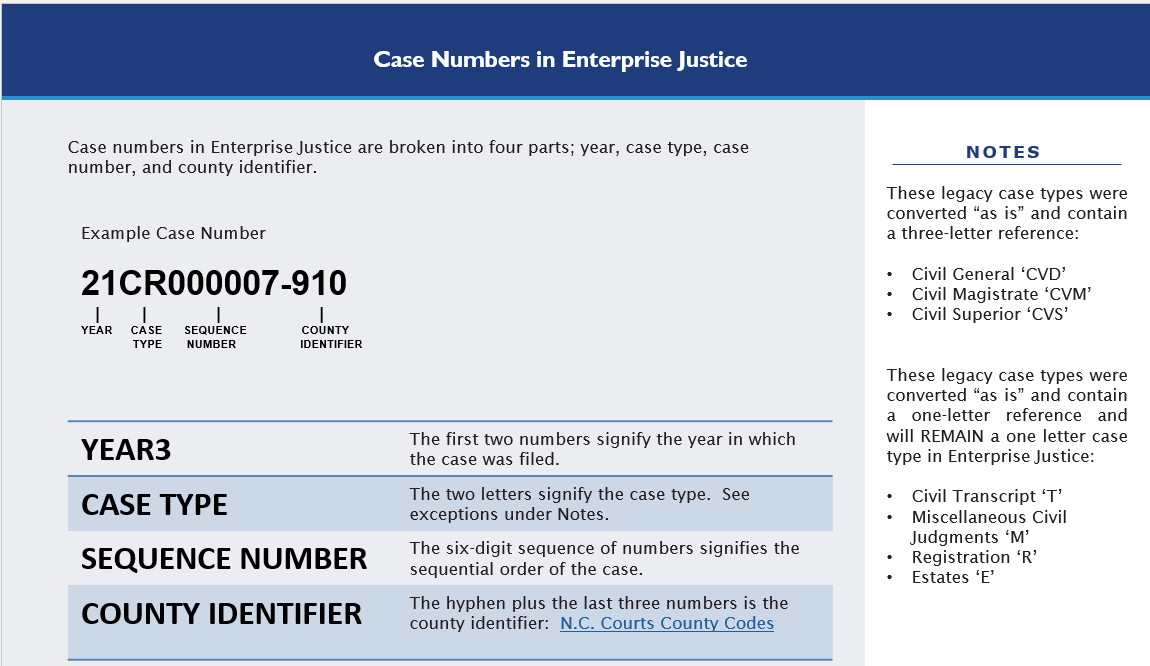 Case Numbers: In Enterprise Justice there are four parts: year (2 digits), case type (letters), case sequence number (6 digits), and county identifier (3 digits). Example: 21CR000003-910
Partial Name or Number Search: To perform a wildcard search using a case number, enter at least four characters, followed by an asterisk (*); for a business name or nickname, use a minimum of four characters followed by an asterisk and to perform a name search using the wildcard, type a minimum of three characters followed by an asterisk for the last name, and a minimum of one character followed by an asterisk for the first name. View the Name Indexing Standards.
Advanced
Registration and Elevated Access
Registration for Portal is not required for anonymous users to search and view publicly available court information. The public may register if they plan to visit often and would like the ability to save cases to the ‘My Cases’ tab. See more details below for registration and Elevated Access. Only those users who have a verified business need and authority granted by statute will be approved for elevated access to access restricted case types or non-public information.
- Registration is completed through the “Register/Sign In” link located in the top right corner of the Portal screen.
- Attorneys who are not assigned to restricted case types, and do not wish to request elevated access, may register in Portal.
- Attorneys should reference the Portal Elevated Access Roles document below for more information about attorney elevated access, and links to access File & Serve and the AOC-A-264 Portal Elevated Access Request/Agreement (Counsel).
- Registration provides access to the “My Cases” Portlet and allows the user to save cases of interest for quick access.
- Registration does NOT provide additional access to information or restricted case types; registered users have the same access to information as an anonymous/public user.
For more information, please see the guides and FAQs on this page.
- Portal Elevated Access Roles
- Portal Domestic Violence Agency Elevated Access FAQs
- Portal Government Agency Elevated Access FAQs
- Judicial Branch Expands Elevated Access for Private Counsel
- Attorney requests must be submitted through File & Serve, using the AOC-A-264 form.
- Granted for all attorneys and allows access to restricted information on all cases which you are entitled to by statute and are an Enterprise Justice ACTIVE Party / Attorney assigned to the case.
- Non-attorney staff are not eligible for elevated access; the requestor must be assigned a bar number.
- Registration is NOT required and should NOT be completed. The ‘My Cases’ feature in Portal is available once Elevated Access is approved.
- A Portal password email link is sent if an Attorney registers in Portal prior to requesting and being approved for Elevated Access. No additional notification is sent.
- Portal uses the email address as the User ID. Portal permits one user to be associated with an email address.
- Only ONE request is necessary; once AOC verifies the attorney is listed in Enterprise Justice, Elevated Access is granted with the Attorney Party ID and the attorney will be able to view ALL cases for which they are listed as an ACTIVE attorney in Enterprise Justice.
- Attorneys do NOT need to submit a request for each case or restricted case type.
- Attorneys will NOT be able to view restricted information until they are listed as an Enterprise Justice ACTIVE attorney on the case.
- Contact the applicable county Clerk of Court to be properly added as an Enterprise Justice ACTIVE attorney to an applicable case.
Payments
What payments can be made in Portal?
- Criminal court fees and fines can be paid online without visiting the courthouse by using Portal's MAKE PAYMENTS portlet.
The following payment types ARE accepted online:
- Cost and Fees
- Restitution
- Criminal Attorney Fees
- Probation and Parole Fees
The following CANNOT be paid online:
- Alimony
- Bond Forfeitures
- Cash Bonds
- Child Support Payments
- Civil Judgments
- Condemnations
- Rent Bonds
- Trust Funds
- Upset Bids
See Portal FAQs for more information.
Standards and Codes
- Historic Party Correction Index
- Track 1 Pilot Counties Correction Index (xlsx)
- Track 2 Mecklenburg Correction Index (xlsx)
- Track 3 Correction Index (xlsx)
- Track 4 Correction Index (xlsx)
- Track 5 Correction Index (xlsx)
- Track 6 Correction Index (xlsx)
- Track 7 Correction Index (xlsx)
- Track 8 Correction Index (xlsx)
- Track 9 Correction Index (xlsx)
- Track 10 Correction Index (xlsx)
- Transcript Key
- Name Indexing Standards
- County Codes for Enterprise Justice
Hardware and Software Required
- Browser Requirements - Chrome™, Microsoft® Edge®
- Note: Using the recommended browsers on MacOS may result in unexpected errors and issues.
- Operating Systems - Microsoft® Windows®, Linux®, Chrome OS™ Android™, iOS, and OS X®
- Recommended Hardware:
- Intel® Core™ i3 or AMD A6 processors with at least a 2.0 GHz clock speed
- 4 GB of RAM
- 1920 x 1080 resolution of both desktop computers and mobile devices
- High-speed Internet connection
- Document Format - Adobe® PDF
Support
For additional support, contact [email protected] for questions or issues.
For questions relating to case information or documents in court files, please contact the clerk of superior court in the county where the case is located.